You may never see any of our emails because Google hides them.
Our emails are hidden in 3 layers of unseen folders under the category, “promotions”. This happens even if you are subscribed to our list. (Learn more about where Google hides folders at the bottom of this page).
Yahoo and Hotmail may also have similar automatic sorting enabled but we do not know exactly how their proceedures work. It should be similar to what we show below.
Here’s how to fix it.
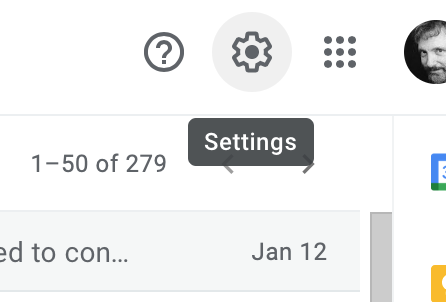
1. Open Settings
Click on the gear icon in the upper right-hand corner of the page.
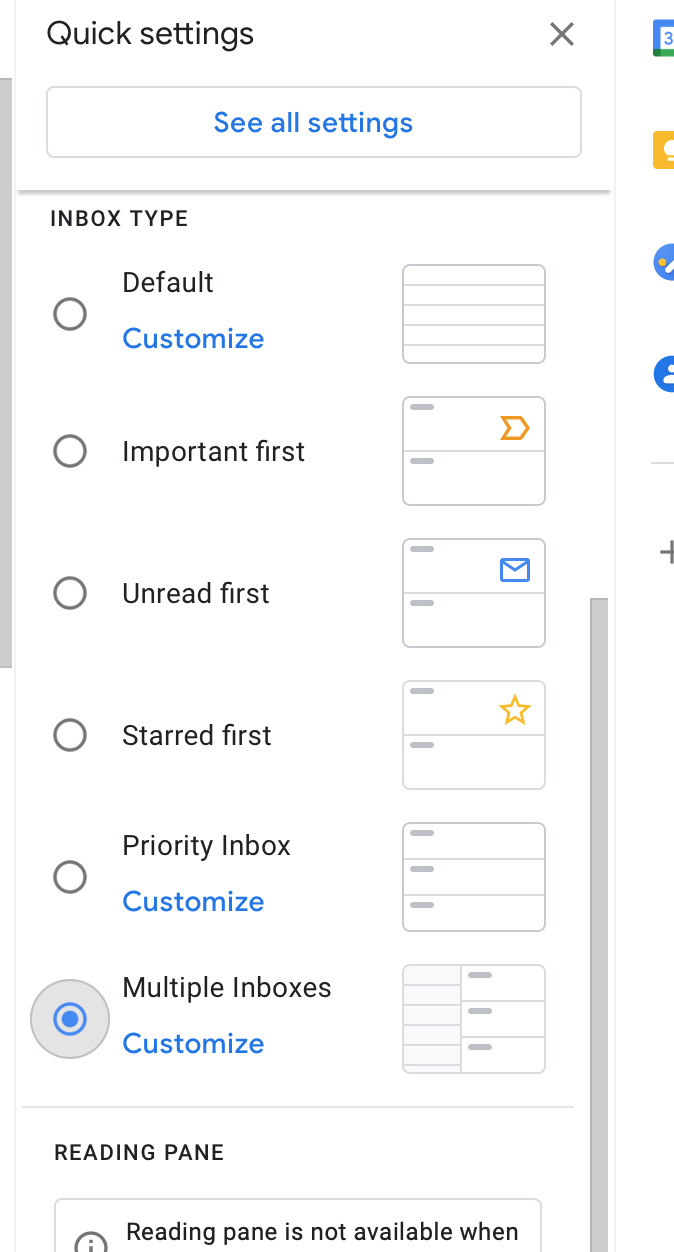
2. Customize “Multiple Inboxes”
Click on the word, “Customize” under “Multiple Inboxes” which is down towards the bottom of the list that pops up.
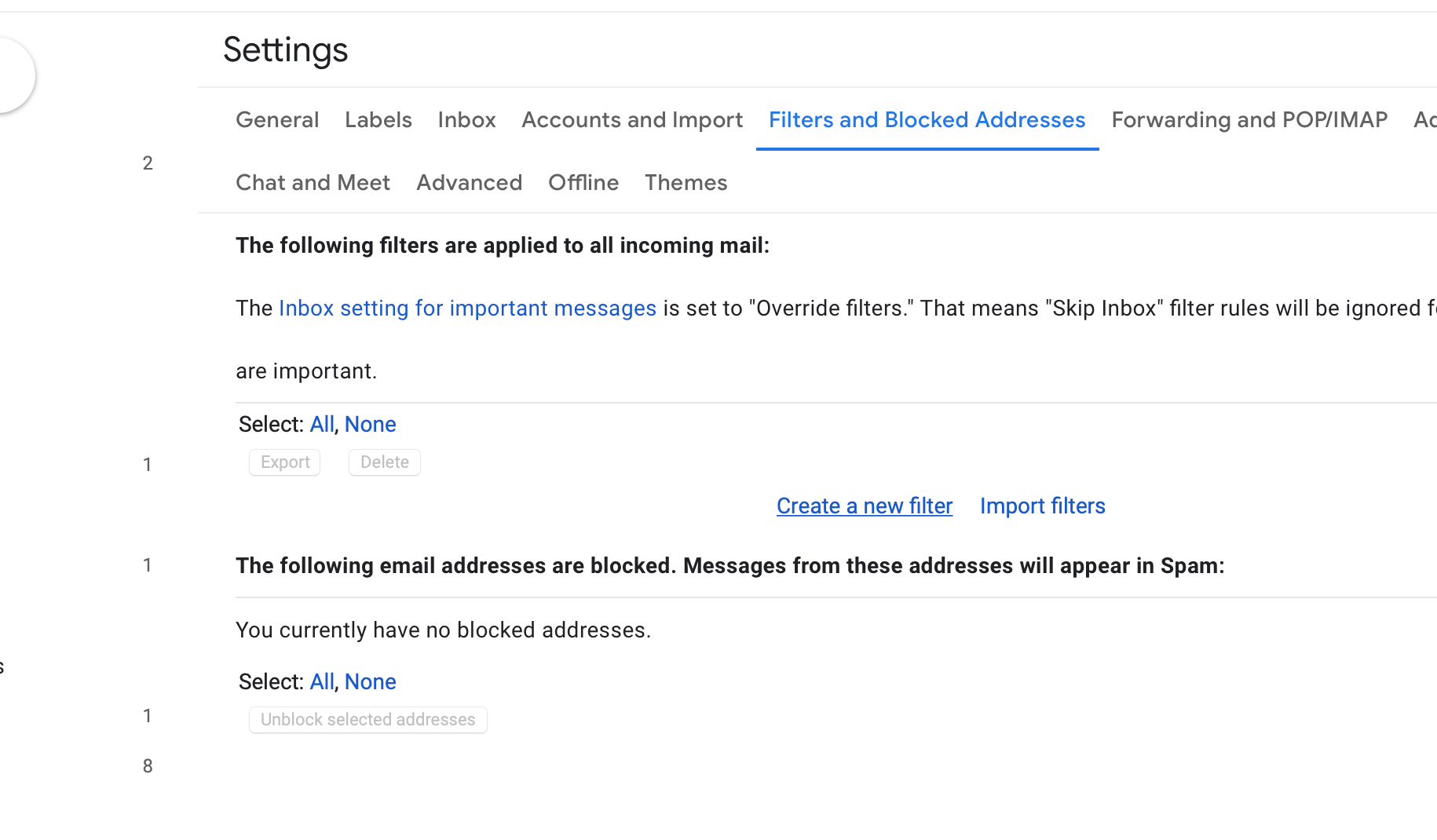
3. Select Filters Tab
After the Settings dialog box appears, click on “Filters and Blocked Addresses” tab at the top. It will change to blue.
4. New Filter
Then you click on “Create a new filter” shown in the second section in blue lettering.
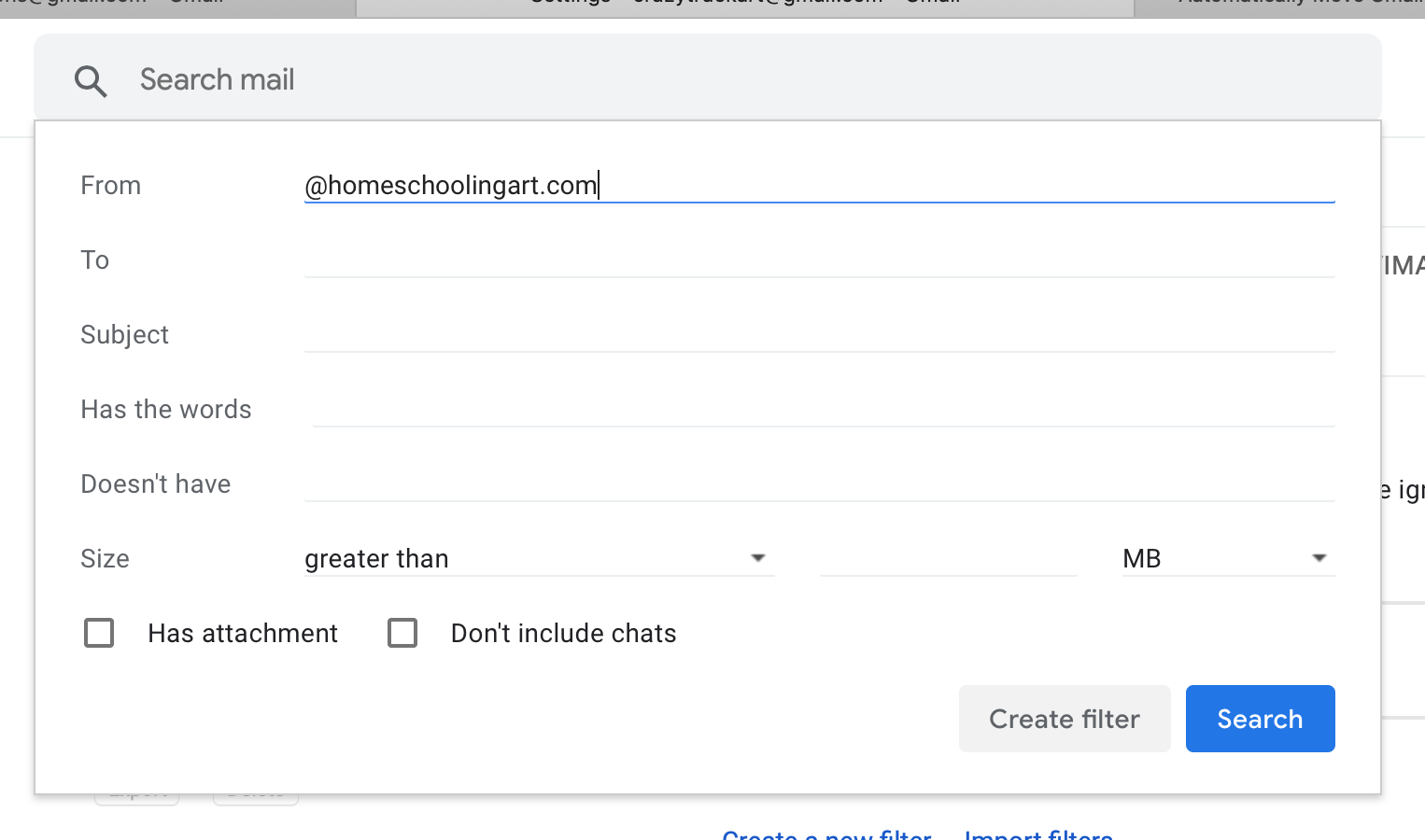
5. Type @address
Any address you want to see can be entered here to create a filter to move it to the Inbox. Add our email domain in the top line with no spaces, exactly like this:
@homeschoolingart.com
(Do not add more criteria)
You can make more filters for any other business you want to see in your Inbox.
6. Create Filter
Then you click on “Create filter” shown at the bottom right. Do NOT type “Enter/Return” or click the Search button though.
That’s it! Now all our emails will show in your regular Inbox.
We don’t send a lot of emails, and when we do, we send something we think you’ll want to know, such as an important announcement about your lessons, or a free art article by Dennas.
Where did Google put all those emails?
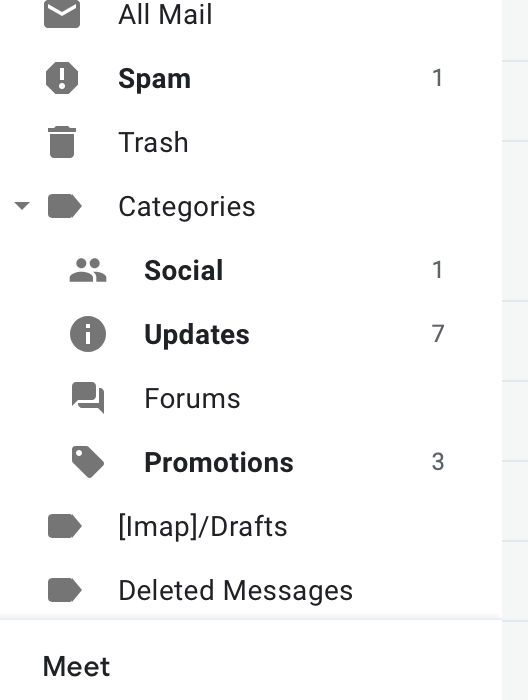
You have to work pretty hard just to know there are missing emails at all.
First, you have to click “More” in the list of email folders over on the left side of the page. it’s below Drafts.
Then you have to scroll down even more, to see the “Categories” folder where Google hides emails. It’s below Spam, and Trash.
You won’t even see a number indicating there are unread emails, until you click on the “Categories” folder!
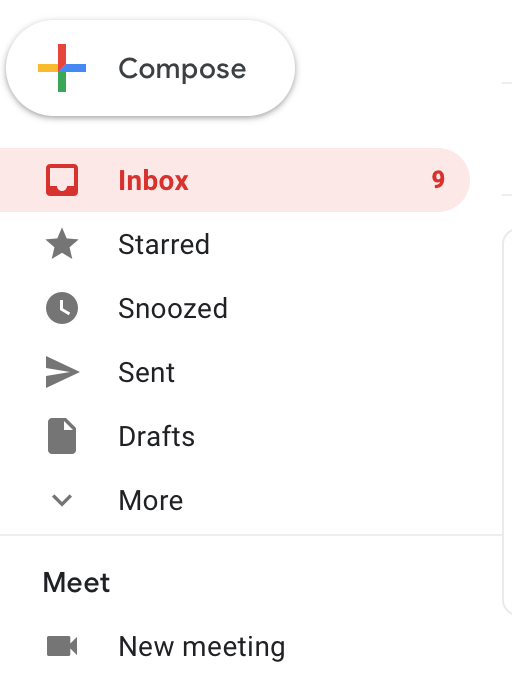
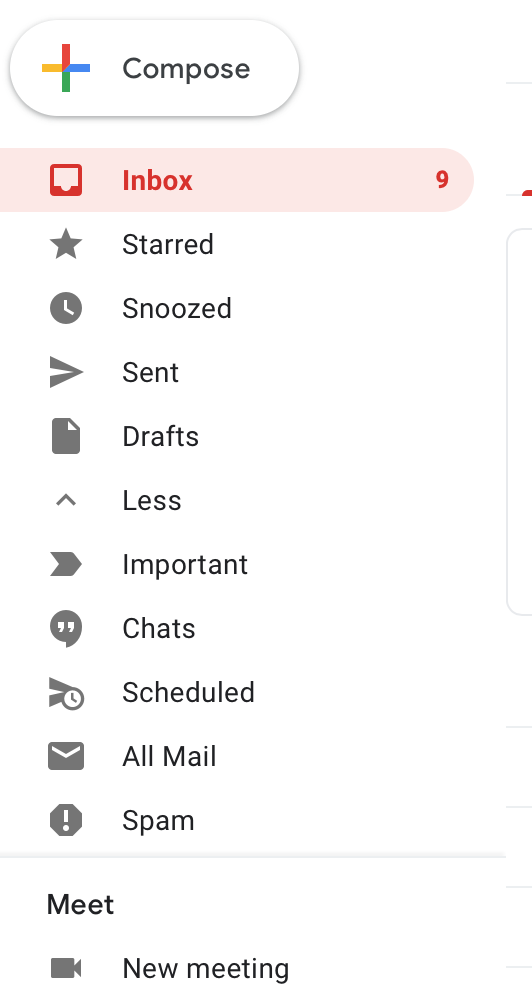
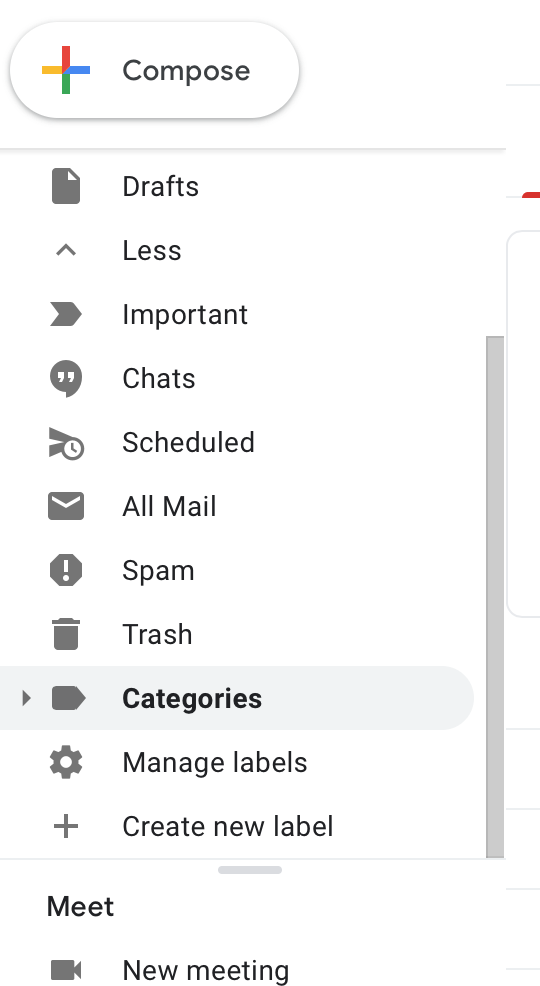
Finally! Here are the 4 categories that Google uses to move your emails without notifying you. Now the unread number shows up next to each category.
Our emails tend to get placed in the Promotions folder, as if you had not signed up for our list.